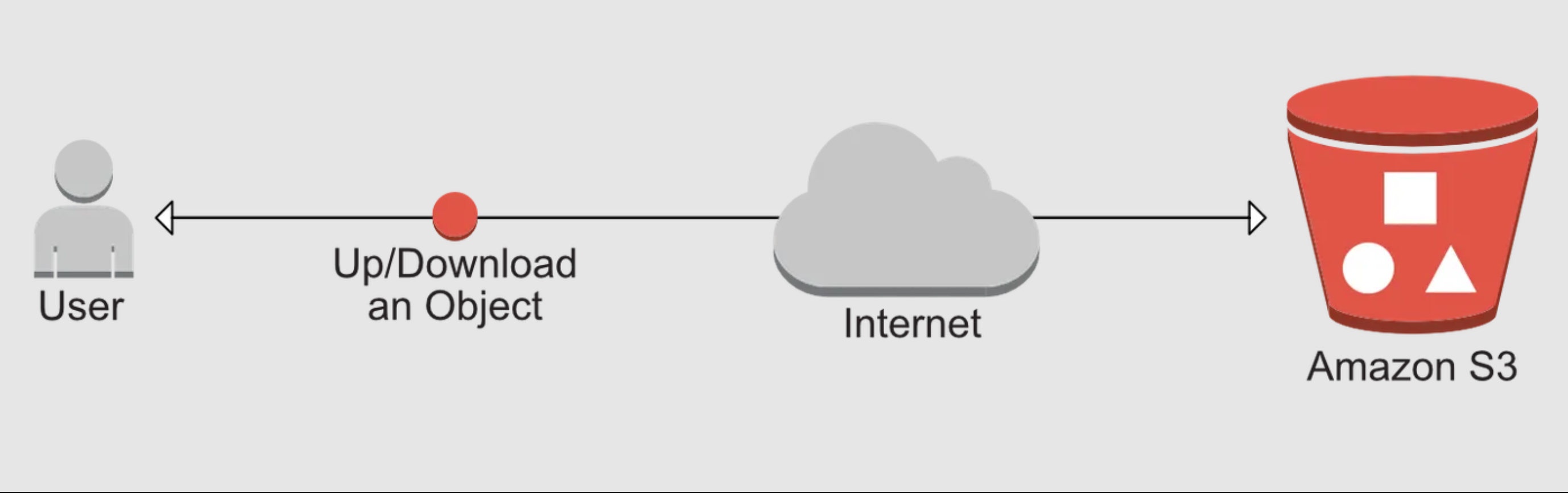
Amazon Simple Storage Service (S3) is one of the oldest and most reliable services on AWS. It is a highly scalable object storage service that allows you to store and retrieve data from anywhere on the web via a secure API over HTTPS.
Our Goal: Secure File Retrieval in React
In this tutorial, we will retrieve a PDF document stored securely in an Amazon S3 bucket and download or render it inside a React client application. To bridge the frontend and storage layers securely, we will use a Node.js middleware running on AWS Lambda. This prevents us from exposing sensitive cloud credentials directly to the browser.
Step 1: Store and Upload Your Files to AWS S3
To get started, your file needs to reside in an S3 bucket. You can upload files manually through the AWS Console using drag-and-drop, or handle uploads programmatically. If you need to build a client-side upload feature, feel free to check out my previous guide on how to build a serverless backend to handle S3 uploads.
Step 2: Set Up Your Node.js and Lambda Serverless Backend
Next, we will configure a serverless Node.js backend using AWS Lambda and API Gateway. Below is a sample serverless.yml configuration to define your service, HTTP endpoints, CORS headers, and IAM permissions. Note that we grant the Lambda function s3:GetObject permissions specifically for your bucket's target directory.
service: download-file plugins: - serverless-offline - serverless-deployment-bucket custom: headers: - Content-Type provider: name: aws runtime: nodejs18.x region: ap-south-1 profile: default deploymentBucket: name: <your-deployment-bucket> serverSideEncryption: AES256 functions: readBooks: handler: <your-handler-path> events: - http: path: read-books method: post cors: true headers: '${self:custom.headers}' private: false iamRoleStatements: - Effect: Allow Action: - 's3:GetObject' Resource: 'arn:aws:s3:::publicdocument/documents/*'
To interact with AWS S3 and Lambda in your TypeScript environment, install the following required dependencies:
npm i aws-lambda @types/aws-lambda aws-sdk
When designing an architecture to serve assets, you have two primary approaches to choose from. Let's analyze both options to understand why one is vastly superior for production applications.
Option 1: Download the Complete File in Node.js (Not Recommended)
In this approach, the Lambda function fetches the entire file from S3 into memory and sends the raw buffer back to the client. If you choose a direct download s3 lambda pattern to fetch files this way, you will quickly hit severe platform bottlenecks. Consider these critical AWS Lambda constraints before choosing this path:
Lambda has a strict payload size limit of 6MB for synchronous request-response invocations.
The default Lambda function timeout is 30 seconds (and API Gateway has a hard limit of 29 seconds).
Buffering large files in memory can dramatically increase your execution costs and latency.
async servePDFStream() {
const fileName = this.requestBody.fileName;
const foldername = 'document';
const params = { Bucket: 'publicdocument', Key: `${foldername}/${fileName}`, };
const s3 = new AWS.S3({region: process.env.AWS_REGION});
const { Body } = await s3.getObject(params).promise();
return Body; }
Option 2: Generate an S3 Pre-signed URL (Recommended)
Instead of forcing a heavy node.js s3 operation to pipe raw data through your serverless function, a better alternative is to generate a secure, temporary S3 pre-signed URL. This URL acts as a short-lived authorization token, allowing the browser to download the file directly from S3 safely.
While a direct s3 stream works wonders for processing file content on the fly, pre-signed URLs are highly performant for direct client downloads, handle files of any size, and automatically expire after a period you define:
async servePDFStream() {
const fileName = this.requestBody.fileName;
const foldername = 'document';
const params = { Bucket: 'publicdocument', Key: `${foldername}/${fileName}`, };
const s3 = new AWS.S3();
const signedUrlExpireSeconds = 60 * 2;
const url = s3.getSignedUrl('getObject', { Bucket: params.Bucket, Key: params.Key, Expires: signedUrlExpireSeconds });
return url; }
Important Security Note: Never bundle the aws-sdk library directly into your client-side application. To access S3 securely, your code needs your AWS Access Key ID and Secret Access Key. Storing these credentials on the client side exposes them to anyone inspecting your bundle. Always handle S3 authorization on your server-side middleware.
Step 3: Download and Render the Pre-signed URL in React
Once your React application receives the pre-signed URL from your backend API, you can download the file or load it into a document viewer. For security and control, you can fetch the file as a Blob using an XMLHttpRequest and render it using a library like PDF.js on a canvas element. This ensures the document remains secured and is not directly shareable via a standard URL copy-paste action across environments.
const downloadPDFFromURL = (url) => {
const xhrObj = new XMLHttpRequest(); xhrObj.open("GET", url, true); xhrObj.respblob"; xhrObj.addEventListener("loadstart", loadStartFunction, false); xhrObj.addEventListener("progress", progressFunction, false); xhrObj.addEventListener("error", downloadError, false); xhrObj.addEventListener("timeout", downloadTimeout, false); xhrObj.addEventListener("abort", downloadAbort, false); xhrObj.onreadystatechange = async (event) => { try {
if (xhrObj && xhrObj.status === 400) { setloading(false); } else {
if (xhrObj && xhrObj.readyState === XMLHttpRequest.DONE) {
if (isMobile) {
const blobData = new Blob([xhrObj.response], {
type: "application/pdf" }); showPDFInViewer(blobData); } else {
const pdfData = await convertBlobToBase64(xhrObj.response); loadPDFWithBlob(pdfData); } } } } catch (error) { console.error("File download exception: ", error); setloading(false); } }; xhrObj.send(null); };
const loadStartFunction = (event) => { console.log("File download started"); };
const progressFunction = async (event) => {
if (event.lengthComputable) {
const progress = Math.round((event.loaded / event.total) * 100) + "%"; setprogressTxt(progress); } };
const downloadError = () => { console.log("Network Error!"); };
const downloadTimeout = () => { console.log("Network Timeout!"); };
const downloadAbort = () => { console.log("Upload Aborted!"); }
Optimizing Performance and Access Control
Reading files directly from an Amazon S3 bucket for every single request can quickly become costly and introduce latency. While write operations must hit S3 directly, read requests for static assets can be heavily optimized using a Content Delivery Network (CDN). In this section, we will look at how to leverage Cloudflare to cache these assets efficiently.
Configure Cache Rules in Cloudflare
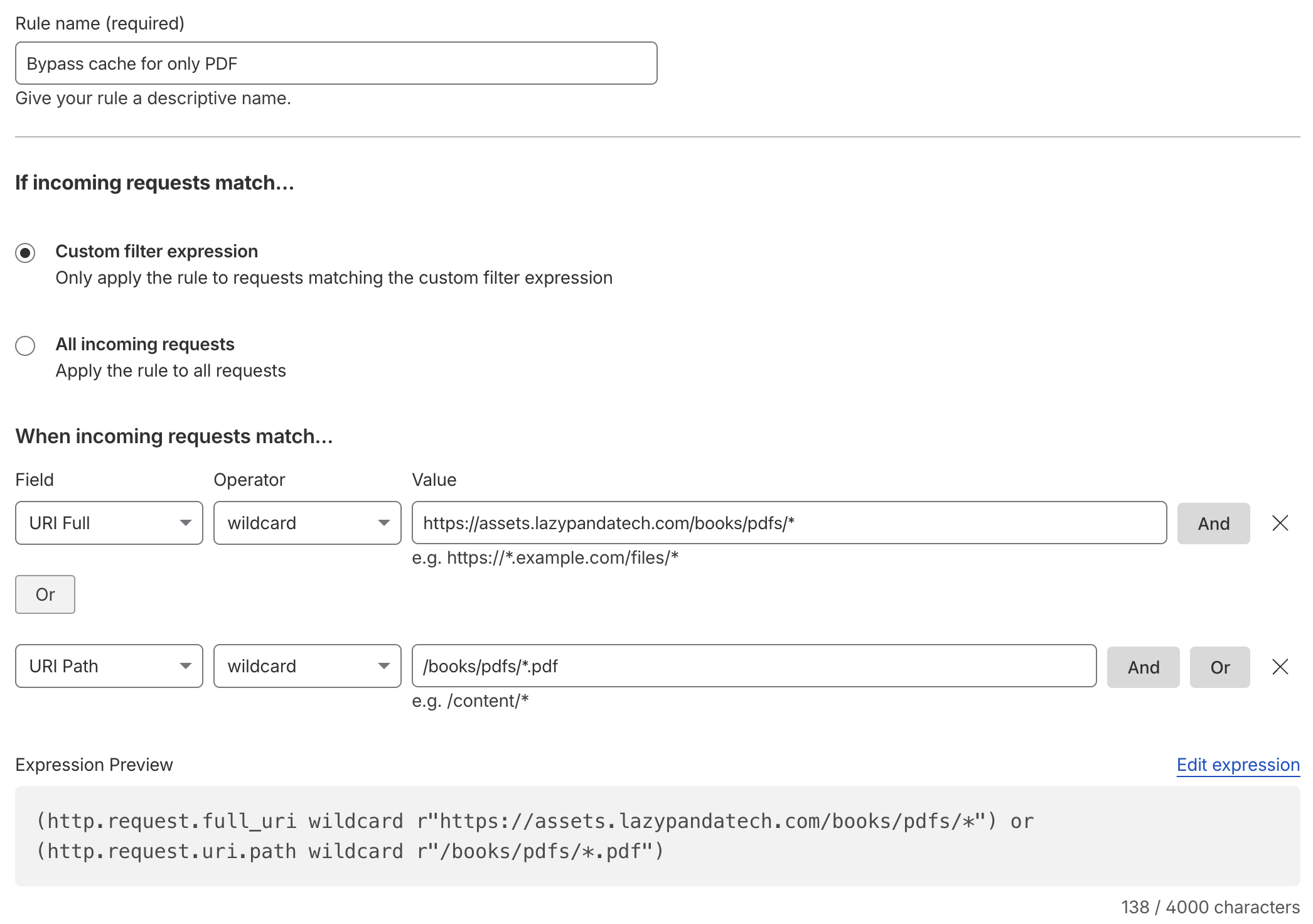
To prevent redundant S3 lookups, you can set up specific page or cache rules in Cloudflare:
Navigate to the Cache Rules option under the Caching tab in your Cloudflare dashboard.
Click Create Rule and configure a custom filter expression to match your document paths.
Set the Cache Eligibility to "Bypass Cache" if your documents require strict, real-time access control via your Lambda middleware, or configure it to eligible if you want Cloudflare to edge-cache public assets.
Configure the Browser TTL to respect the Origin TTL or override it with a custom value. If your documents rarely change, setting a longer TTL will dramatically reduce load times for your end-users.
Key Takeaways
Secure Your Credentials: Never bundle the AWS SDK or raw IAM credentials within your client-side React code to avoid severe security leaks.
Leverage Pre-signed URLs: Bypassing the 6MB AWS Lambda payload limit via short-lived S3 pre-signed URLs keeps your serverless functions fast and cost-effective.
Enhance Client-Side UX: Fetch documents securely as Blobs on the frontend to render them dynamically within custom viewers, preventing direct URL sharing.
Optimize with Caching: Use a CDN like Cloudflare to cache non-sensitive documents and reduce expensive S3 read operations.
Next Steps
Implementing secure file downloads doesn't have to bottleneck your system's performance. Whether you are learning how to stream files from s3 using nodejs or choosing the highly optimized pre-signed URL approach, shifting this authorization logic to serverless middleware keeps your infrastructure secure. Update your S3 CORS policies, deploy the serverless stack described above, and start delivering high-performance, secure document delivery to your users today.